
MCP lets an AI client you already use, such as Claude or ChatGPT, work with your team's leads and Kanban boards. You ask it in your own words — "which leads in Qualified have not written back this week?", "add this contact", "move Ana to Won" — and it looks things up and makes the change in Sync Pro for you.
The client connects with a token. Each token belongs to one team, acts with the permissions of the person who created it, and can be revoked on its own.
Before you start
- Have MCP on your team. The Company and Enterprise plans include it, and on any other plan the MCP add-on is free. Either way, a new team has it turned off until someone turns it on: open Add-ons from the menu, find MCP and press Activate. If your team was already using MCP, it stays on. You need Manage Plans to see that screen; if MCP is not in the list, ask whoever administers your Sync Pro. See Sync Pro plans for what each plan includes.
- Have the permission to manage tokens. Your role needs, under Permissions, either Manage Mcp Tokens or Edit Settings. The team owner has both from the start.
- Have your own AI client. The connection does not include the account, subscription, credits or usage of Claude, ChatGPT or any other client: those are billed to you by its provider.
Create a token
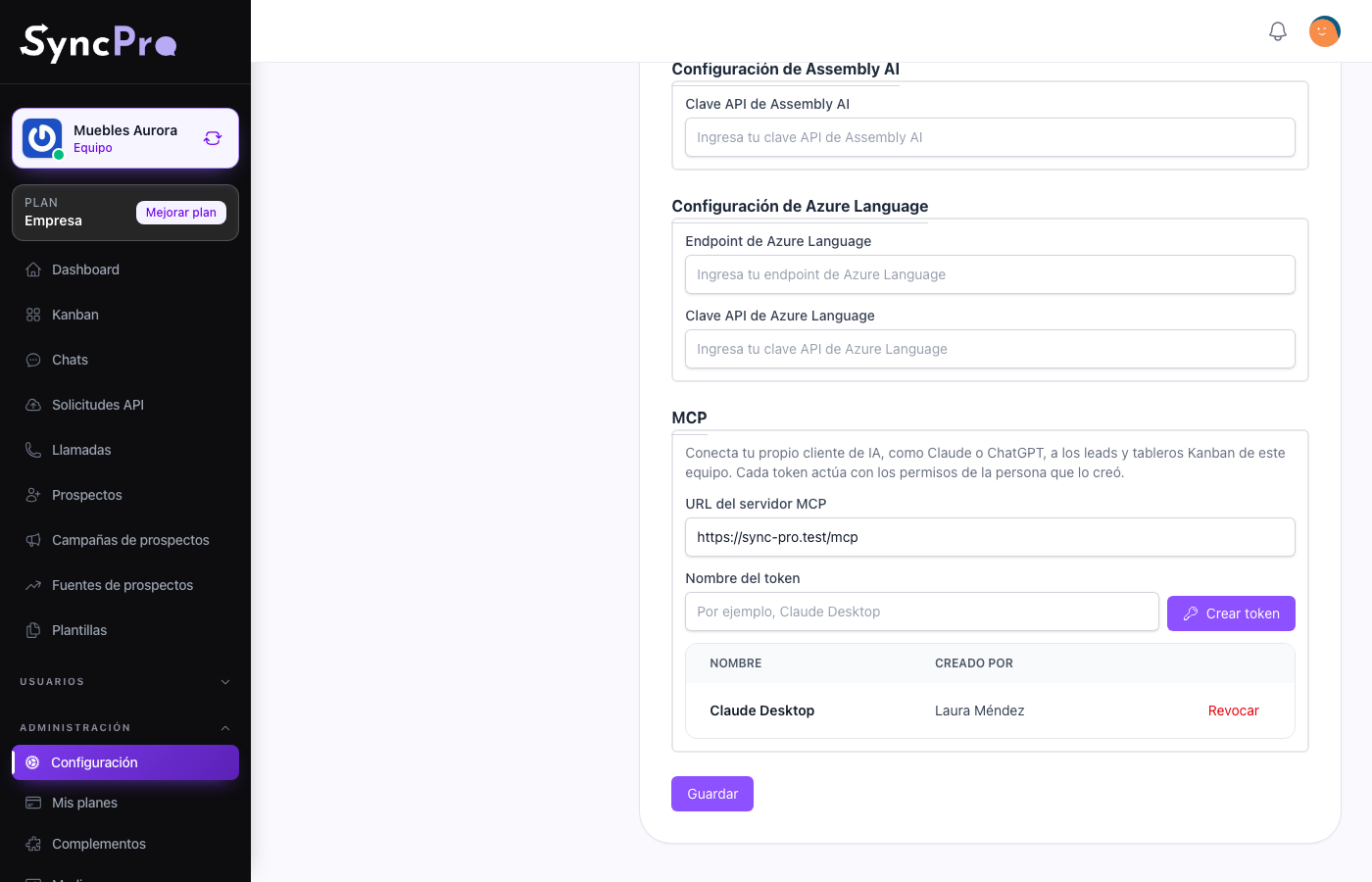
- Go to Settings → Integrations. When MCP is turned on for your team and your role has Manage Mcp Tokens or Edit Settings, an MCP section appears there.
- Write a Token name that tells you where it will be used — for example, Claude Desktop — and press Create token.
- Copy the New token straight away and keep it somewhere safe. You will not be able to see it again. Press Done when you have it.
If you lose a token, you cannot recover it: create a new one and revoke the old.
Below the form, the section lists every token of the team with its Name and who it was Created by — Former member when that person's account was deleted. Anyone who can manage tokens sees them all and can revoke any of them.
Connect your client
Every client has a place to add an MCP server, usually called connectors, integrations or MCP servers. Give it two things:
| Field in your client | What to paste |
|---|---|
| Server URL | The MCP server URL shown at the top of the MCP section. |
| Token, API key or Authorization header | The token you copied. When the client asks for a header, write Bearer followed by the token. |
Once connected, the client shows the Sync Pro tools and you can start asking. Sync Pro hands the list of tools over in two parts, so a client that only reads the first part misses some of them.
What the AI can do
It works inside the team the token belongs to, and only as far as the person who created the token is allowed to go. If that person cannot see templates, neither can the AI. Sync Pro answers the AI in that person's language.
| It can | It cannot |
|---|---|
| Search and read your leads, with the Kanban column each one is in, all of their responsible users, who wrote last and when, and whether the 24-hour window is open. | Edit or delete a WhatsApp message already sent. |
| List only the leads a team member is responsible for, or only the ones waiting for your reply, with the most recent conversation first. | |
| Give you the link to a lead's chat, so you open it in Sync Pro in one click. | |
| Read a lead's WhatsApp conversation, or its messages and calls together in the order the chat shows them. | Delete a column that still has cards. |
| With Callpicker on, read every call of your team with its summary, transcript and recording. | |
| Read your Kanban boards. | See or change another team. |
| Create a lead, edit a lead's details and delete a lead. | Do anything the token's creator is not allowed to do. |
| Create, rename and delete a board, and add, rename, reorder and delete its columns. | |
| Put a lead on a board in any column, rename or remove its card, and move it to another column, on the same board or on another board. | |
| See and change who is told when a lead arrives on a board, the list behind the board's New lead notices bell, if the token's creator may edit that board. | |
| See your team's members and choose who is responsible for a chat. | |
| See your team and its roles, invite a person to the team, remove a member and change a member's role, with the same rules as the Members screen. | |
| Change your team's name and description, see the invitations nobody has accepted yet, send one again or cancel it. | Delete the team. |
| See the permissions a role can carry, and create, rename, change and delete roles. | Give a role a permission the token's creator does not have. |
| See your team's Add-ons and switch them on or off. | Show a price or charge anything. |
| See the folders and files of your team's Media, create a folder, rename a file and delete one to free space. | |
| See your team's support Tickets, read one, reply to it and close it. | Attach a file to a reply. |
| See your team's data exports and imports, and start an export of the team. | Import a team's data: that stays in Settings. |
| Write and delete internal notes in a chat, and mark a chat as read or not read for the token's creator. | Upload a file. |
| Read, create, edit, rename, copy and delete your message templates and see the variables of each one, send them to Meta for approval and import them from Meta. | |
| With Advanced Leads on, see, create, rename and delete your lead sources and lead campaigns, and choose the source a campaign belongs to. | Delete a source or a campaign without confirming it. |
| Read the Api Requests log: what reached Sync Pro, the answer it got, and which ones failed. | Run a failed request again, or connect or disconnect WhatsApp or Callpicker. |
| Send a lead a WhatsApp message, a file of your media library or an approved template, schedule a message and cancel it before it leaves. | Send anything you did not ask it for. |
| Send or schedule an approved template to every lead of a Kanban column, after telling you how many will get it. | Send a message while the 24-hour window is closed, other than a template. |
Every lead and every card the AI reads or changes comes with the link to that lead's chat, so you can ask it for the link — "give me the link to Ana's chat" — or it can add one to each lead it lists for you. While your team has no WhatsApp number linked, the link opens the lead's page instead.
Leads come with the most recent conversation first, and those with no messages at the end. Notes and messages still waiting to be sent do not count as the last message. A lead is waiting for your reply when its last message came from the contact and nobody on the team has answered it yet, so you can ask "which leads are waiting for a reply?" or "which leads is Ana responsible for?" — a lead counts for Ana whether she is its first responsible user or not. Knowing whether the 24-hour window is open tells the AI whether it can still send a text or needs an approved template.
Deleting a board also deletes its columns and the cards on it; the leads stay. The last column of a board is its final column, so when the AI moves a column into or out of the last place it tells you which column is final now.
When the AI changes who is responsible for a chat, each person it adds gets the usual notice, except the person who created the token. Notes are never sent to the contact. A chat can only be marked as read or not read when the token's creator is one of its responsible users.
The AI follows the same rules for templates as the template screen: a repeated name, a missing example for a variable or a wrong button link is refused the same way. As on the screen, when the AI edits a template it already has, only what it changes is checked, so it can rename a template Meta approved or imported, or fix one of its fields, without the rest being checked again; renaming alone sends nothing to Meta. It can also change only the name of a template, as Change name does on the templates list, even one imported with an image, video or document header whose file Sync Pro does not have. See How to build a template. A template with an image, video or document header uses a file that is already in your media library. When the AI sends a template to Meta, Meta still has to approve it; if Meta refuses it, nothing is saved and the AI tells you why.
The team tools follow the same rules and permissions as the team's own screens: Members for members and invitations, Roles for roles, Add-ons, Media, Tickets, and Settings for the team's details and its data exports. Without View team tickets, the AI only sees the tickets the token's creator opened. An export arrives as the usual notice, with the package to download; see Move your team's data to another team.
The AI deletes a lead source or a lead campaign only when it explicitly confirms the deletion; otherwise nothing is deleted. The same goes for deleting a file, a role or an invitation and for closing a ticket. The leads that had it stay, and so do the campaigns of a deleted source. When the token's creator cannot see calls, a lead's timeline comes without them.
When the AI sends messages
Everything the AI sends leaves under the name of the person who created the token, with the same rules as the chat. A message or a file needs the 24-hour window to be open; when the window is closed, the AI is told to send an approved template instead. A number that is not on WhatsApp is tried all the same, and the failure shows in the chat. Nothing goes out to a new contact once your team has reached its monthly limit of contacts served. Files are taken from your media library; the AI never uploads new ones.
A template can generate a Meta charge when it reopens a conversation's 24-hour window. A template sent to a whole column multiplies that charge by the number of leads, so it takes two steps: the AI first finds out how many leads would get it, without sending anything, and only sends when it asks again with that same number. If the column changed in between, nothing is sent and it has to ask again. A column send runs in the background, so the messages appear in each chat over the next moments.
When the AI is not allowed to do something, it gets a clear "Not allowed" answer telling it why, so it can tell you instead of guessing. A WhatsApp phone that another lead already has is refused the same way.
Each token can make up to 600 requests a minute. Past that, the client is asked to wait a moment and try again.
Seeing what the AI changed
Every change made through MCP appears in the lead's Activity History under the name of the person who created the token, with a Via MCP (AI) badge. Point at the badge to see which token made it. Moving a card also adds a Kanban Column entry showing where it came from and where it went, and a Kanban Board entry when it changed board. Creating, renaming or removing a card, changing who is responsible, writing or deleting a note and marking the chat as read or not read add an entry too.
In the chat, every message the AI sent or scheduled carries the same Via MCP (AI) badge next to its time, and again next to the sender's name when you open the message information, so it is never mistaken for one written by hand. A template sent to a whole column carries it on each lead's message.
Revoking a token
In Settings → Integrations → MCP, press Revoke next to the token and confirm. It stops working right away; the other tokens keep working.
A token also stops working when:
- the MCP add-on is turned off — every token of the team stops, and they work again when it is turned back on;
- the team leaves Company or Enterprise for a plan without MCP and the add-on is not on — the same happens, and turning the add-on on brings them back;
- the person who created it leaves the team;
- the person who created it no longer has Manage Mcp Tokens nor Edit Settings, or their account is blocked — the token stays in the list, and works again if they get one of those permissions back.
A person who loses any other permission takes it away from their tokens too, on the very next request.